
Daily use
Following your first plan
A treatment plan is the heart of the app. Here’s how plans are built, where to find yours, and how to follow it day by day.
What a plan is
Each plan is a structured rehab program for one specific issue — “Lumbar Muscle Tension / Postural Low Back Pain,” for example. Plans are organized into three phases that mirror how a physical therapist would actually treat you in clinic:
- Mobilize. Gentle motion work to wake up stiff joints and tissue.
- Stretch. Lengthen the tight structures that are pulling on the area.
- Strengthen. Build the supporting muscles so the problem doesn’t come back.
A typical plan runs 1–4 weeks with daily routines of about 10–20 minutes. There’s no equipment required.
Where to find your plan
Your plans live in two places: the Home tab (most recent plan) and the Plans tab (everything).
On the Home tab
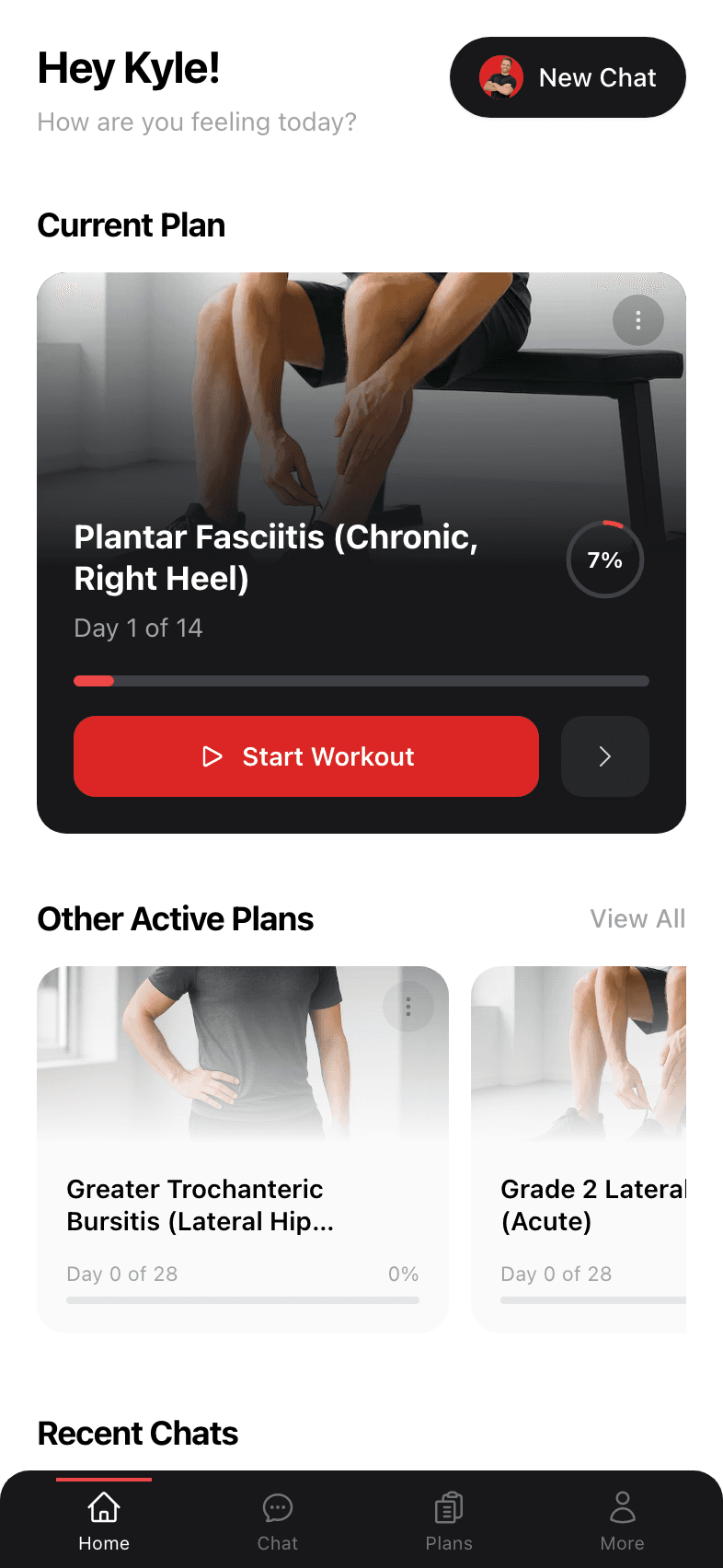
The big Current Plan card at the top is the plan you’re currently working on. It shows your progress as a percentage of total days, the day count (“Day 3 of 14”), and a one-tap Start Workout button.
If you have multiple plans running — say back and shoulder — the Other Active Plans carousel below it shows the rest.
On the Plans tab
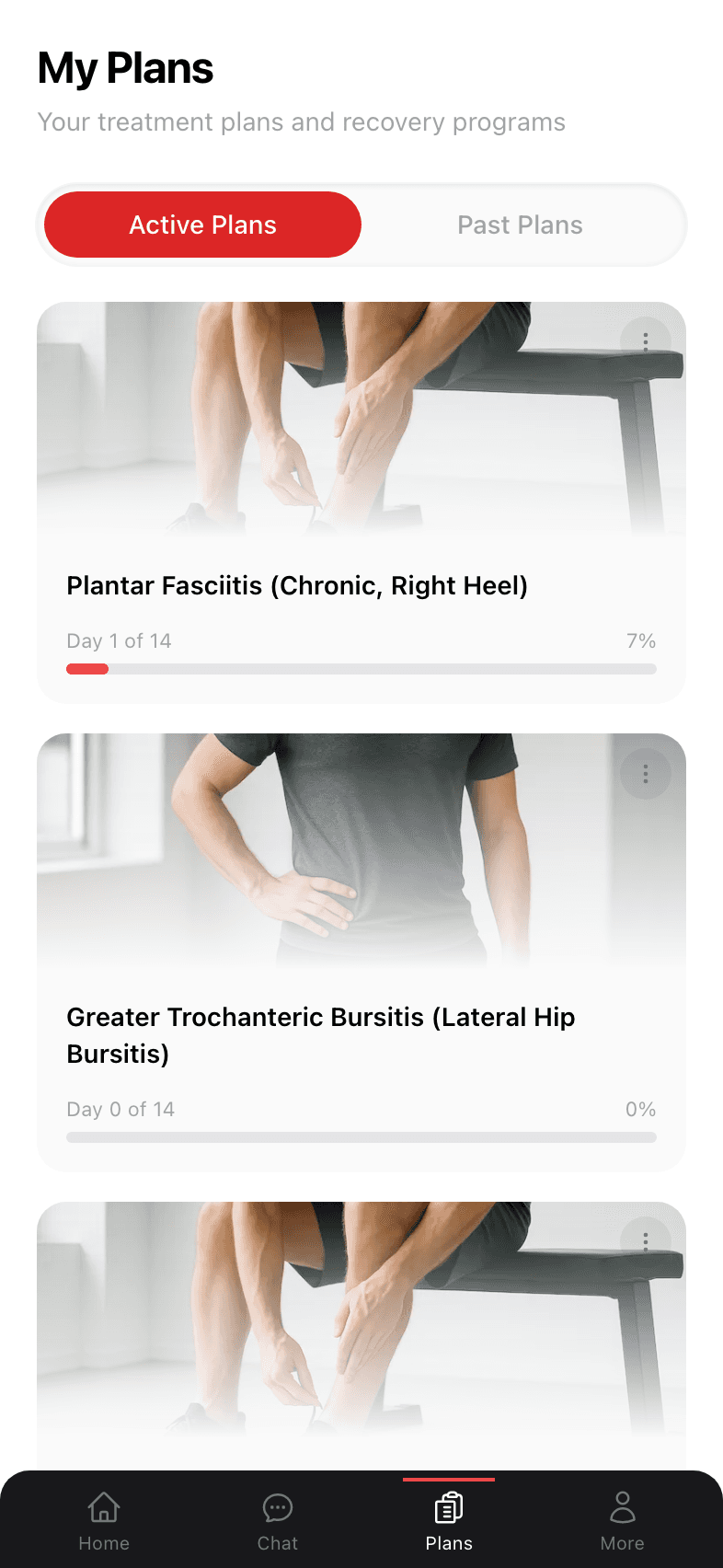
Tap the Plans icon in the bottom nav for the full list. There’s a two-button toggle at the top:
- Active Plans — anything you’re currently working on.
- Past Plans — plans you’ve marked complete (or that ran their course).
More on this on the Plans page.
Inside a plan
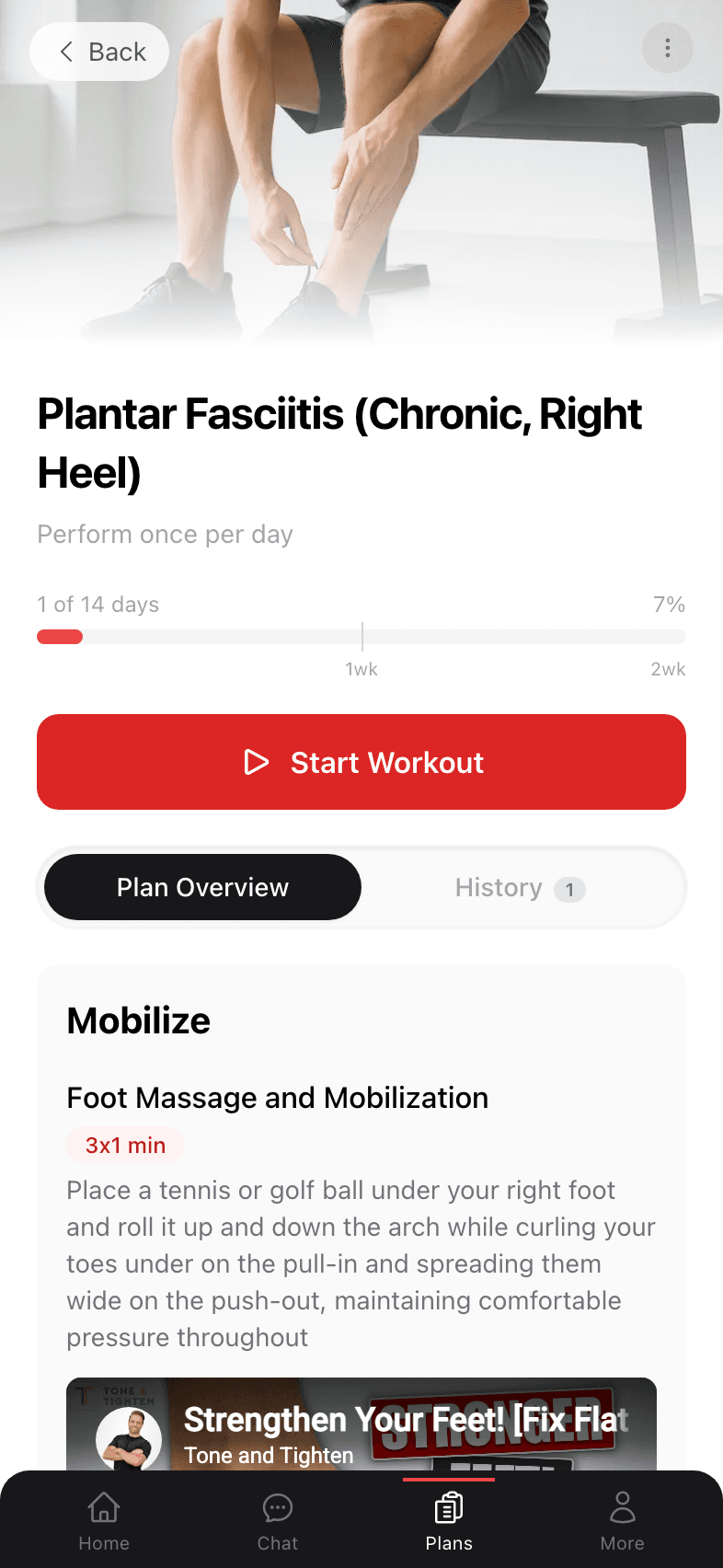
Tap any plan card to open the full detail view. You’ll see the full list of exercises organized by phase, plus your day counter and progress bar at the top.
The plan detail layout
- 1
Header with frequency, timeline, and progress
Just below the plan title, you’ll see the daily/weekly cadence, how many weeks the plan runs, and your current progress as a percent. - 2
Start Workout button
The big red button kicks off today’s session. Tap it any time during the day — you can do your routine whenever it fits. - 3
Plan Overview / History tabs
Plan Overview lists every exercise. History shows the sessions you’ve already completed for this plan, day by day. - 4
Mobilize → Stretch → Strengthen sections
Each exercise card shows the name, the sets × reps (or duration), a one-sentence cue, and a video thumbnail. Tap the thumbnail to play the demo. - 5
Progression note at the bottom
Many plans include a short note explaining how to progress — e.g. “After 2 weeks, increase reps by 20% and add a short daily walk.”
A typical day
- 1
Open the app
You’ll see your current plan front and center. - 2
Tap Start Workout
You go straight to the first exercise of the day’s routine. - 3
Work through each exercise
Watch the demo, complete each set, take the rest interval, and tap the circle to mark the set complete. - 4
Finish and review
After the last exercise you’ll see a session summary. Your progress bar on the Home tab updates automatically.
How progress is tracked
The percentage shown on each plan is based on unique days completed out of total days, not on hours practiced. Repeating a workout in the same day still counts as one day. Skipping a day doesn’t penalize you — your plan simply rolls forward when you come back.