
Your plans
Active & past plans
Where to find every plan you’ve ever started — what’s running, what’s done, and how to jump back into any of them.
The Plans tab
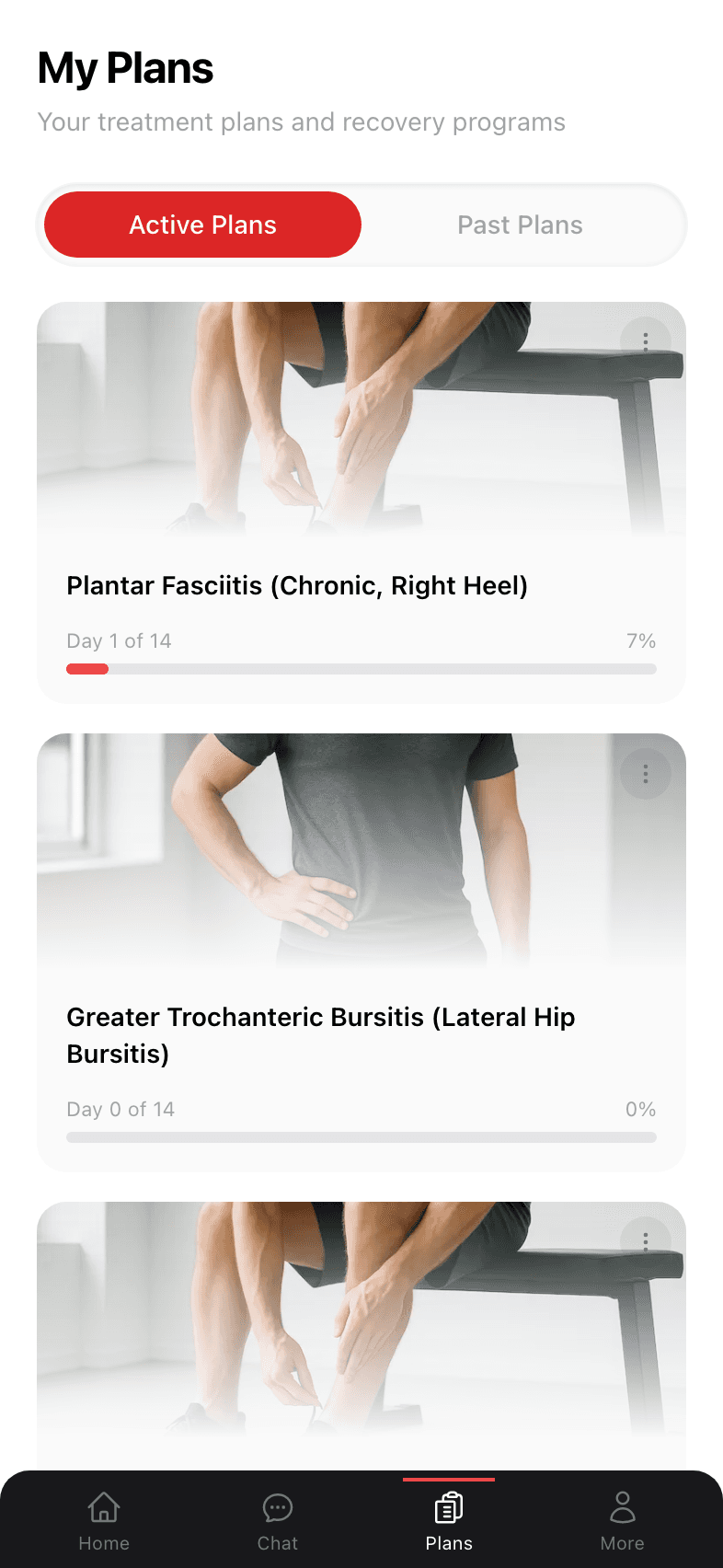
Tap the Plans icon in the bottom navigation. The page shows two toggleable tabs at the top: Active Plans and Past Plans.
Active Plans
Every plan with a status of “active” shows up here. The first card is your most recently active plan; older active plans stack below it. Each card shows:
- The plan title (e.g. “Lumbar Muscle Tension / Postural Low Back Pain”).
- Your day count (“Day 1 of 14”).
- A percentage progress bar.
- A hero image so you can scan visually.
Tap any card to open the full plan detail page.
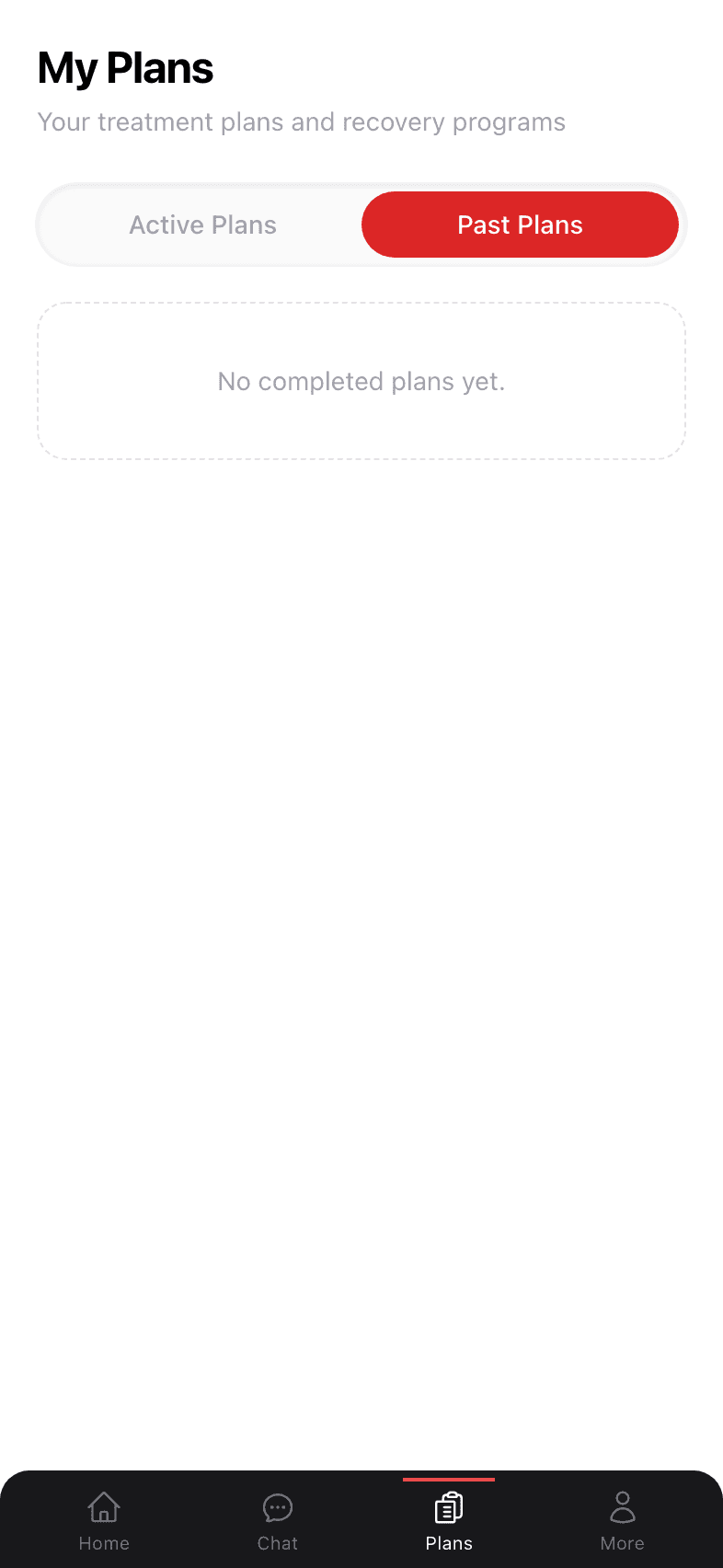
Past Plans
Tap Past Plans to see plans you’ve completed (or that were manually archived). New users will see “No completed plans yet” — that’s expected, this tab fills in as you finish plans over time.
Tapping a past plan opens its detail page in read-only mode. You can review the exercises you did or use it as a reference if a similar issue comes back.
Plan detail page
Every plan card opens the same detail layout. The full breakdown is on the Following your first plan page; here’s the short version:
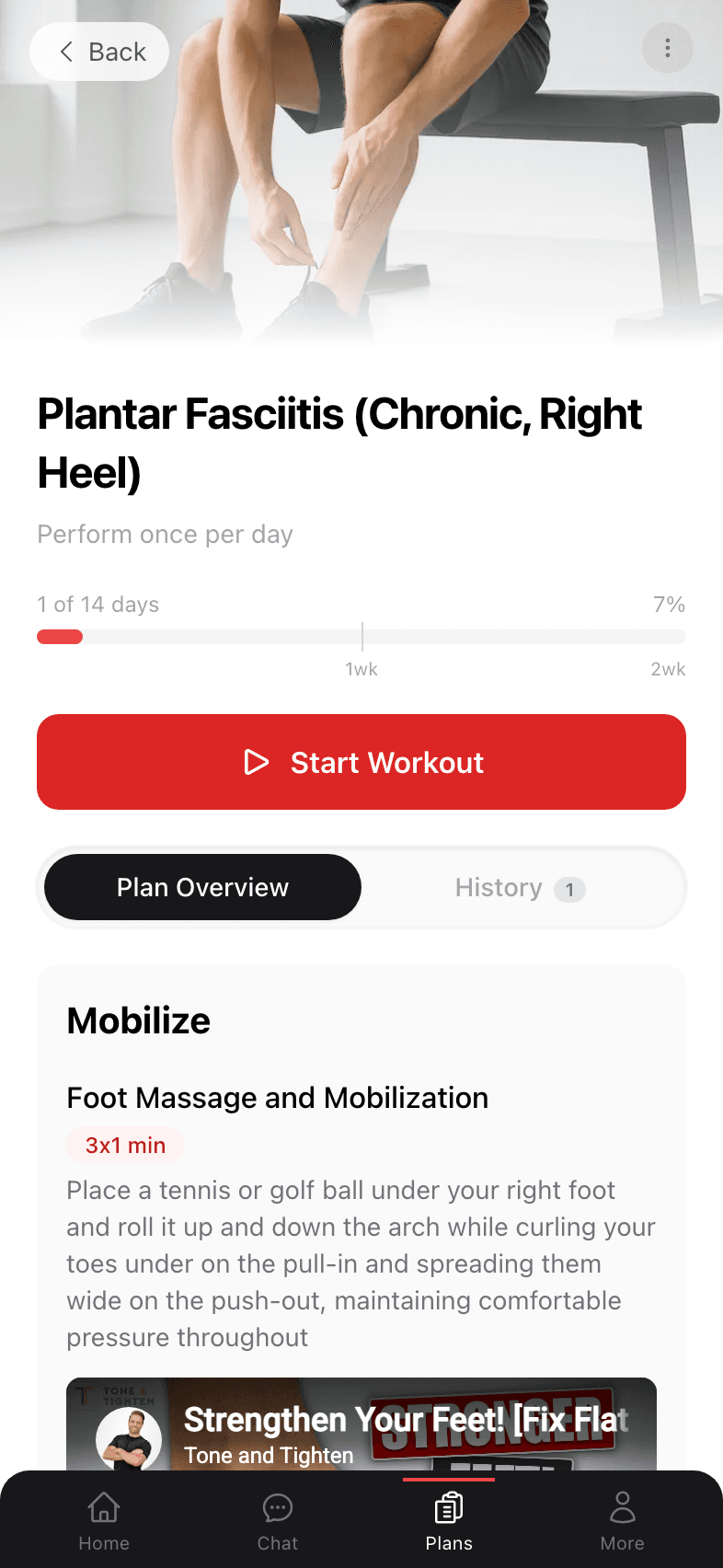
- 1
Header
Plan title, frequency, total weeks, your progress percentage, and a big red Start Workout button. - 2
Plan Overview / History tabs
Overview lists every exercise. History shows previous workout sessions, day by day. - 3
Exercises by phase
Mobilize → Stretch → Strengthen. Each exercise has a name, prescription, cue, and a video demo. - 4
Progression note
A short paragraph at the bottom describing how the plan ramps up over time.
Running multiple plans
You can run as many active plans as you want. Common combinations:
- One plan for a primary issue (e.g. lower back), another for a smaller issue (e.g. tight neck).
- A plan for one body area on weekdays, a stretching plan for weekends.
- Stacking a strengthening plan after a mobility plan to lock in gains.
Each plan tracks its own day count and progress independently. The dashboard surfaces your most recently active plan as the “Current Plan” card, with the rest in the “Other Active Plans” carousel below it.
Marking a plan complete
Plans auto-complete when you finish the schedule. You can also manually mark a plan complete by opening the plan detail and using the menu in the top-right. Completed plans move to Past Plans.