
Daily use
Chat history
Every conversation you have with Dr. Jared is saved. Here’s how to find a past chat and pick up right where you left off.
Where to find chat history
There are two entry points, depending on which screen you’re on:
- From the dashboard. Scroll to the Recent Chats list at the bottom — your five most recent conversations live there.
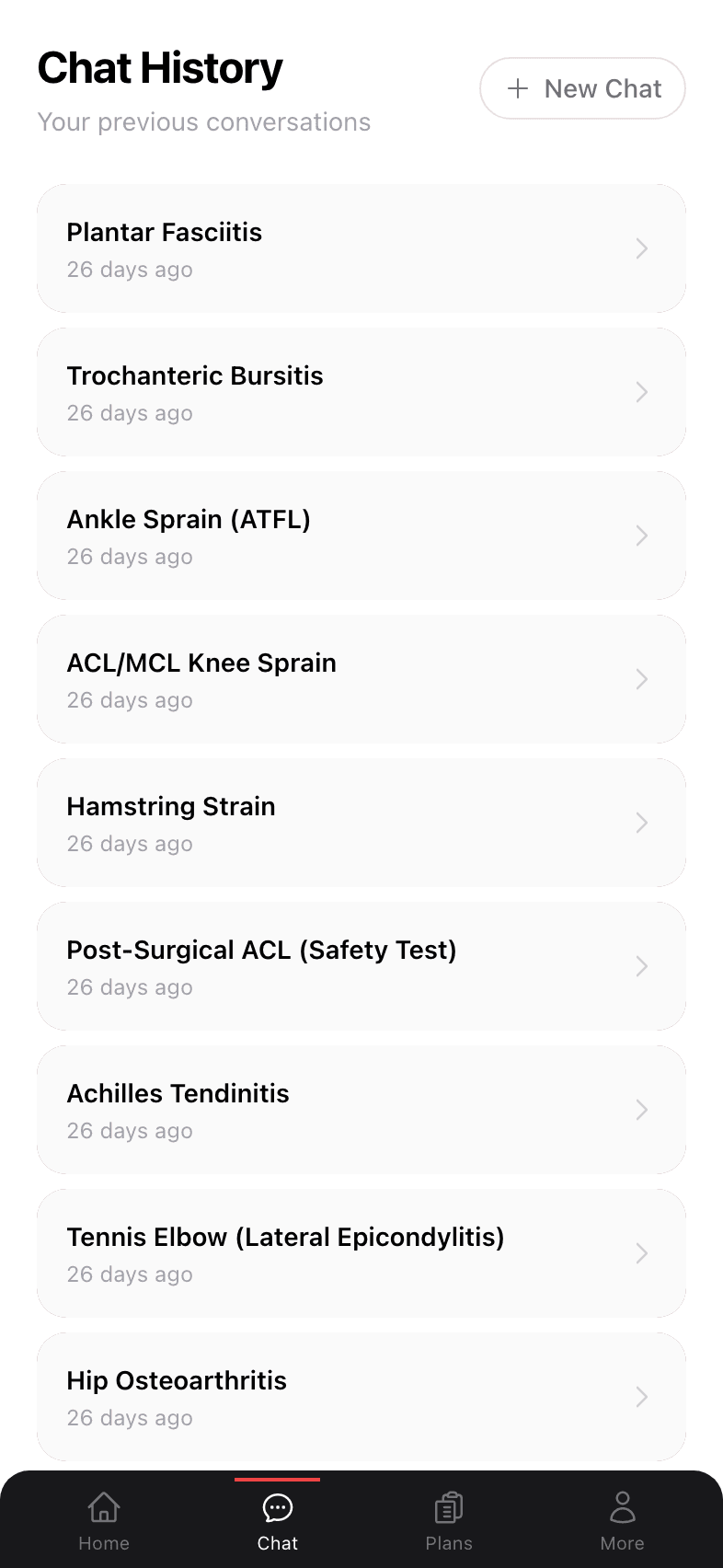
- From the new chat screen. Tap History in the top-right. That opens the full history page with every conversation you’ve ever had.
- 1
Conversation title
Auto-generated from your first message — e.g. "My lower back hurts when I sit too long". You can read at a glance what each chat covered. - 2
Last activity
“10 days ago,” “yesterday,” “just now.” Shows when the chat was last updated, not when it was started. - 3
Right arrow
Tap anywhere on a chat row to open it. Conversations always reopen at the bottom — the most recent message.
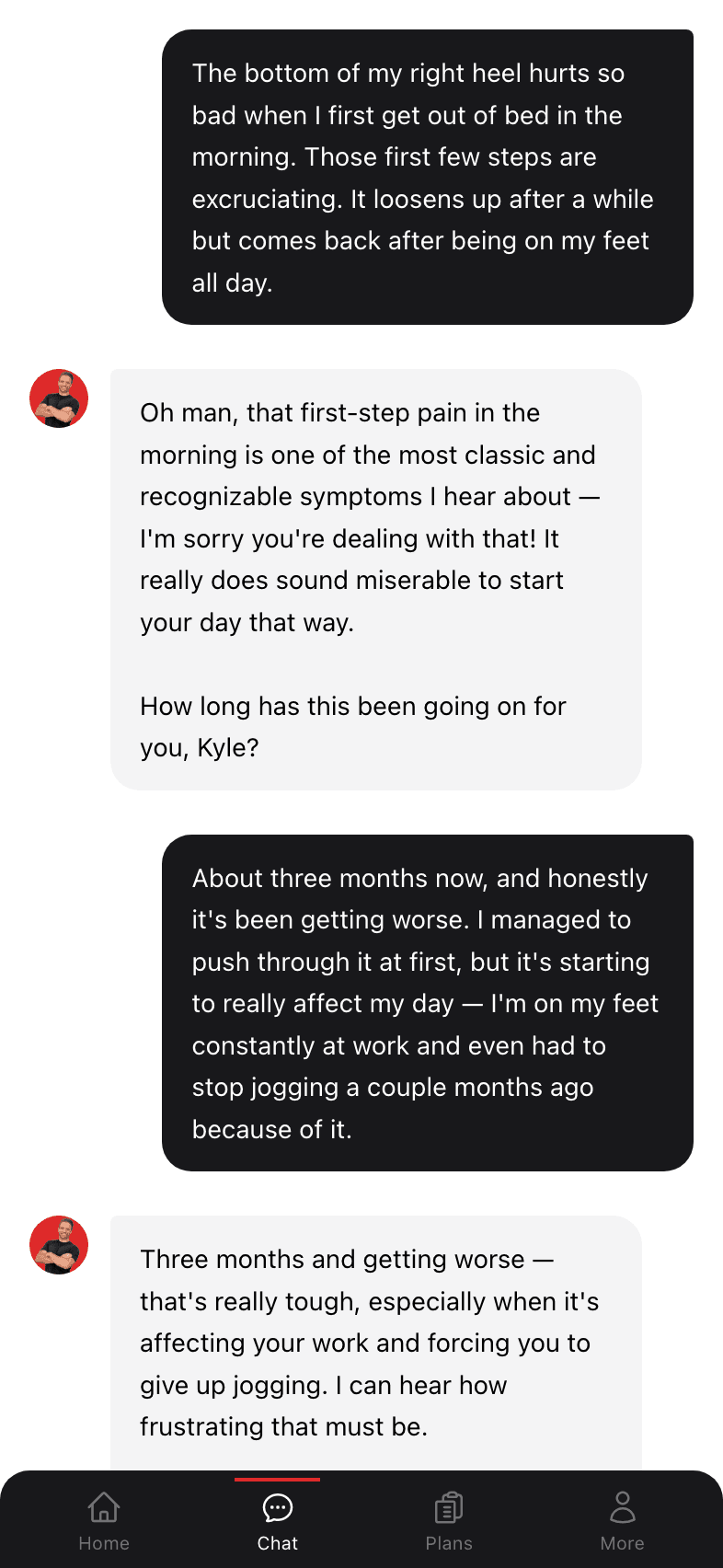
Opening an old chat
Tapping a chat row brings you into the full conversation. Scroll up to re-read older messages. To continue, just type a new message — Dr. Jared has the full conversation in context.
Searching and finding
Chat history is sorted by most recently updated, not by when the conversation started. That means if you replied to a 3-month-old chat yesterday, it floats to the top.
The full history view is paginated and load-on-scroll, so even hundreds of chats are easy to navigate.
How chats relate to plans
Plans are usually generated inside a chat. So if you’re looking for the conversation that produced a given plan — say to ask a follow-up — open the plan, scroll down to the linked chat, or just find the conversation in Chat history by its title (which usually matches the body area).
For the inverse — finding plans you created in chat — see Active & past plans.